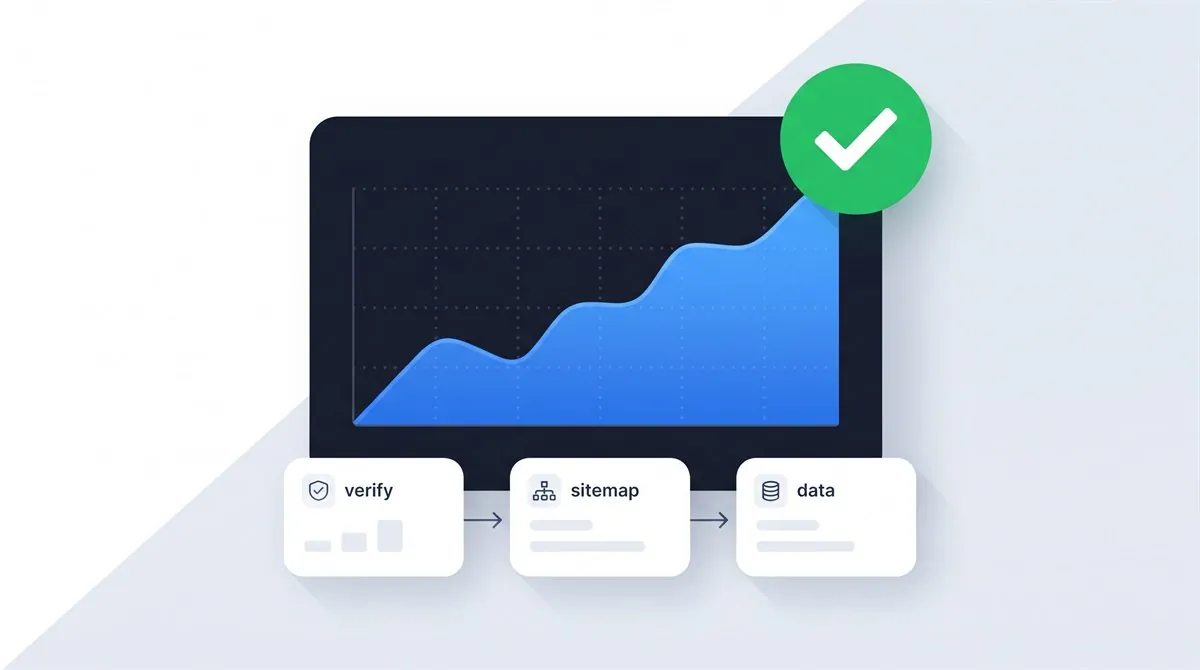
Google Search Console is Google's free tool that shows how your site performs in search: which queries bring impressions and clicks, which pages are indexed, and what's broken. The setup takes about fifteen minutes. You create a property, verify that you own the site, and submit your sitemap. Google handles the rest.
Most setup guides stop right there, which is a shame, because the interesting problems start after the happy path. Verification that fails for no visible reason. The Domain versus URL-prefix choice that quietly shapes all your future data. Reports that mean something different than their names suggest. I set up and audit Search Console properties for client sites constantly, and this walkthrough covers what I actually check, in order. When the property is ready, the complete SEO audit checklist shows where those reports fit beside crawl, content and performance evidence.
What Google Search Console Actually Does
Search Console is the only place where Google tells you, first-hand, how it sees your site. Rank trackers estimate. Analytics tools measure what happens after the visit starts. Search Console reports the step before all of that: your pages competing in search results, measured by Google itself.
Concretely, it answers four questions no other free tool can:
- Which queries show my pages, and where? Impressions, clicks and average position for real searches, not estimates.
- Which of my pages are indexed? And the exact reason for every page that isn't.
- Is something broken? Manual penalties, security issues, Core Web Vitals failures, structured data errors.
- Can Google reach my content? Live URL testing straight from Google's crawler.
One thing it doesn't do: setting it up won't improve rankings by itself. Search Console is instrumentation. The lift comes from acting on what it shows you, which is exactly why it belongs on every site before you spend a single hour on other SEO work.
Domain vs URL-Prefix: Pick the Right Property Type
The first screen after you open Search Console and click "Add property" asks you to choose between two property types. This choice decides what your data covers, so it deserves more than the two seconds most people give it.
| Domain property | URL-prefix property | |
|---|---|---|
| Covers | Everything on the domain: all subdomains, http and https, www and non-www | Only URLs starting with the exact prefix you enter |
| Verification | DNS record only | HTML file, meta tag, Analytics, Tag Manager or DNS |
| Best for | Almost everyone who can edit DNS | No DNS access, or isolating one section or subdomain |
| Data view | One combined view of the whole domain | Separate property per variant you add |
Verifying Ownership, Method by Method
Verification is Google's proof that you control the site, because Search Console exposes data and tools that can hurt a site in the wrong hands. Google's official verification docs list five main methods. Here's each one, with the trap that usually breaks it.
1. DNS TXT record (the only option for Domain properties)
Search Console gives you a string that looks like this, and you add it as a TXT record at your domain registrar:
Type:  TXT
Host:  @   (means the root domain itself)
Value: google-site-verification=AbCdEf123456_your-unique-token
TTL:   3600 (or your registrar's default)
Save the record, go back to Search Console, click Verify. Sometimes it works in two minutes. Google's docs say propagation can take up to two or three days, so a failed first attempt means "wait", not "start over". The record needs to stay in your DNS permanently, because Google rechecks it periodically.
2. HTML file upload
Download the file Search Console gives you, upload it to your site's root folder so it's reachable at https://example.com/google1234abcd.html, click Verify. The file must be publicly accessible with no login, no redirect, and byte-for-byte unmodified. If your host forces every URL through a redirect (say, to a trailing-slash version), this method can fail even though the file is there.
3. HTML meta tag
Add one line inside the <head> of your homepage:
<meta name="google-site-verification" content="your-unique-token">Google requires the tag inside the head section, within the first 2MB of the page. Watch out for CMS plugins that inject it into the body instead, and for site rebuilds that silently drop it. Meta tags are also the topic of a full guide on this site, if you want your whole head section in order while you're in there.
4. Google Analytics or Tag Manager
If GA4 or GTM already runs on the page, Search Console can piggyback on it. You need edit rights on the Analytics account (or publish rights on the GTM container), the snippet has to sit in the head (GA) or right after the opening body tag (GTM's noscript part), and you must use the same Google account for both products. Convenient when it works, brittle when someone swaps the tag setup later and verification silently dies.
Which Verification Method Should You Use?
Answer two or three questions and get my recommendation. This runs entirely in your browser.
The strongest setup. One property covers every subdomain and protocol variant, and the record survives site rebuilds and CMS migrations. Add the TXT record, give it time to propagate, then verify.
Reliable and instant. Upload the file to the root folder, confirm it loads in an incognito window, then verify. Just don't delete the file during a redesign, or verification lapses.
Zero extra code since the snippet is already there. The catch: if anyone restructures the tag setup later, verification dies quietly. Add a second method as backup once you're in.
One line in your homepage head section, and most CMS platforms have a field for exactly this (look for "site verification" in your SEO plugin or theme settings). Confirm the tag shows in View Source, then verify.
When Verification Fails: The Real Causes
This is the part the standard guides skip, and it's where most of the support-forum pain lives. In rough order of how often I see them:
- DNS just hasn't propagated yet. Up to two or three days per Google. Check your record with a lookup tool like
nslookup -type=TXT example.combefore blaming anything else. If the record shows there, it's a waiting game. - The token got "cleaned up". A developer tidies old DNS records, a redesign ships without the meta tag, someone deletes a stray HTML file from the root. Verification lapses after a grace period, and with it, your access. Document which token lives where.
- Redirects eat the verification file. If
example.com/google1234.html301s anywhere (https upgrade is fine, different domain is not), file verification breaks. Test the exact URL in a browser first. - The tag is outside the head. Plugins sometimes inject the verification meta tag into the body. Google only reads it from the head section. View Source and check where it actually landed.
- Wrong Google account. Analytics and Tag Manager verification require the same account to hold rights in both products. Agencies hit this constantly with client-owned GA accounts.
- The homepage requires a login or blocks crawlers. Google must be able to fetch the page anonymously. Staging protection, geo-blocking and aggressive bot filters all break verification.
Submit Your Sitemap (Two Minutes, Do It Now)
Once verified, go to Indexing, then Sitemaps, enter your sitemap URL and click Submit. That's genuinely all. Google finds most sites without it eventually, but the sitemap tells Google your URL list directly and gives you a report showing how many of those URLs made it into the index.
https://example.com/sitemap.xmlTwo details worth knowing. First, also reference the sitemap in your robots.txt (Sitemap: https://example.com/sitemap.xml) so every other crawler finds it too. Second, if the report says "Couldn't fetch" right after submission, refresh in a few hours before panicking. It's usually queue lag, not an error. Before you submit, run your sitemap through Sitemap Scout to catch redirects and dead URLs; the XML sitemap guide covers what belongs in it.
Your First Week: 7 Things to Do After Setup
The setup is done. Here's the part that separates a dusty account from a useful one. Work through these in your first week:
- Inspect your money pages. Paste your five most important URLs into URL Inspection. You want "URL is on Google" for each. Anything else is your first real finding.
- Request indexing for new or updated pages. Same tool, one button. It doesn't skip the quality bar, but it moves your page up the crawl queue.
- Read the Page indexing report once, as a baseline. Every site has non-indexed URLs and most reasons are healthy (redirects, intentional noindex). What you're looking for is your important pages in the wrong column.
- Check Manual actions and Security issues. Almost always empty, takes ten seconds, and if it's not empty it outranks everything else on your list. This is doubly important for domains you just bought or inherited.
- Add a second owner or backup verification. Access tied to one person's account is how companies lose years of data when that person leaves.
- Fix what the head section says about your pages. Search Console shows you the results; your titles, descriptions and robots tags shape them. Audit them together.
- Calendar a monthly 15-minute review. Compare the Performance report with the previous period, scan Page indexing for new reasons and feed relevant query patterns into your keyword research workflow. That cadence catches most problems while they're still small.
The Reports That Matter (and What They Actually Mean)
Performance
Clicks, impressions, click-through rate and position for every query and page. The metric people misread is average position: it's the average of your topmost position each time you appeared, across everything you appeared for. A new page ranking #80 for a big query will drag your site-wide average down while nothing got worse. Judge specific query-page pairs, not the site-wide number.
For a worked example and a repeatable review, read how to interpret Search Console clicks, impressions, CTR and position.
Page indexing
Every URL Google knows about, split into indexed and not indexed, with reasons. "Crawled, currently not indexed" is the reason that deserves your attention: Google saw the page and decided it wasn't worth indexing, which is usually a content quality signal, not a technical one. Here's why a page is not indexed and what to do about each reason.
URL Inspection
The single most useful debugging tool in the product. It shows the indexed version of any URL, the canonical Google chose, and a live test straight from Google's crawler. When a page "should" rank and doesn't, you start here; if the URL is on Google, continue with indexed but not ranking.
Core Web Vitals and Enhancements
Real-user Core Web Vitals data (not lab scores) and structured data validation. Both only populate once your site has enough traffic, so don't worry if they're empty on a new site.
Links
Top linked pages, top linking sites, internal link counts. Not as deep as paid tools, but it's the only backlink list that comes from Google itself.
What Search Console Won't Tell You
I trust Search Console data more than any third-party tool, and I still treat it as a sample, not a census. Four limits to know, all documented in Google's own write-up on performance data limits:
- History caps at 16 months, rolling. Data older than that is deleted forever. If you want multi-year history, start exporting now (BigQuery bulk export or scheduled API pulls).
- Anonymized queries are hidden. Rare queries, made by only a few dozen users over a two to three month window, never show in your query tables. They're still counted in chart totals, which is why your query rows never add up to the total.
- The UI shows 1,000 rows. The API and the Looker Studio connector go up to 50,000 rows per day. If you make decisions from exports, don't make them from the UI's truncated table.
- Averages hide the story. Site-wide CTR and position blend hundreds of query-page pairs. Always segment before concluding anything.
Search Console Setup Checklist
The 10-point setup
- Domain property created (or URL-prefix if DNS is off limits)
- Ownership verified, token documented where the team can find it
- Second verification method or second owner added
- Sitemap submitted and showing "Success"
- Sitemap also referenced in robots.txt
- Top pages checked in URL Inspection: "URL is on Google"
- Manual actions and Security issues both empty
- Page indexing baseline reviewed, no important pages excluded
- Meta tags on key pages reviewed alongside the new data
- Monthly 15-minute review scheduled
Already Set Up, but the Data Looks Worrying?
I read Search Console reports for a living. If the Page indexing report is the worry, the Search Console indexing fix ($170, 2-day delivery) diagnoses the excluded pages and fixes them. For a first look, my free review covers a small selection of your public pages, with up to five priority findings by email.
Request a free reviewGoogle Search Console Setup: FAQ

I'm a developer who moved into technical SEO. I audit sites, then implement the fixes myself: indexing, Core Web Vitals, structured data, rendering. Search Console is the first tab I open on every audit. Request a free website review and I'll take a look personally.