Sitemap Scout: Free XML Sitemap Checker
Find the URLs that need attention in your sitemap. Check for broken links, redirects, noindex pages and canonical mismatches, then export a report you can work through.
Built by Milan Georgijevic at iviG. A focused sitemap health check for site owners, developers and SEO practitioners.
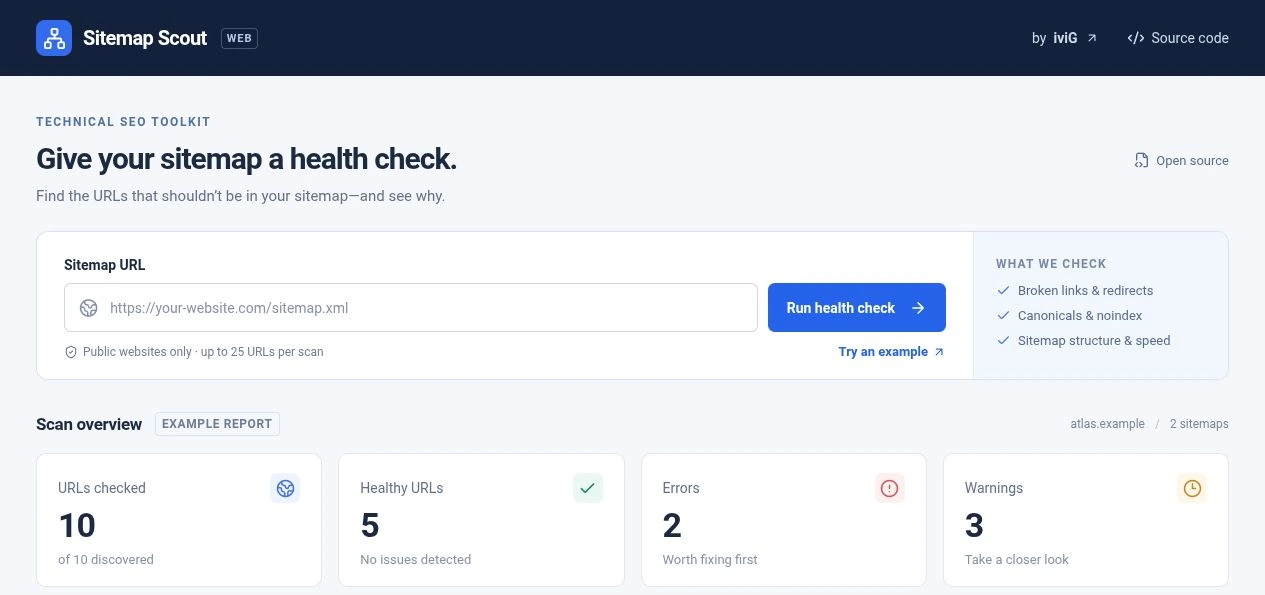
A sitemap can load correctly and still list the wrong URLs
A working XML file is only the starting point. A deleted product, an old address that now redirects, or a page set to noindex can remain in a sitemap after the website changes. Scout helps you find those contradictions in the URLs it checks.
Google recommends including the canonical URLs you want to appear in search results. A sitemap is a discovery signal, not an indexing guarantee. Scout gives you a practical way to review the listed pages before investigating their status in Search Console. Google's sitemap guidance explains the underlying rules.
Use it after removing pages, changing URL structures, adjusting canonical tags or updating your CMS's sitemap settings. For the broader setup process, see the XML sitemap guide.
How to check an XML sitemap
Enter your sitemap URL
Open Scout and paste the full address of a public sitemap or sitemap index. Use the XML file's URL, rather than your homepage. If you only want to explore the interface, select “Try an example.”
Run the health check
Select “Run health check.” Read the checked and discovered counts first, then use the errors, warnings and healthy filters to focus the results. A capped scan does not cover every URL on a larger site.
Inspect, export and fix
Open a result's details to see its status, canonical and robots signal. Download CSV or JSON before closing the tab. Make changes in your website or sitemap generator, then run another check.
What Sitemap Scout checks, and what to do with a finding
Each result is evidence to review. A warning may describe an intentional setup, and one request can be affected by temporary server conditions. Confirm the intended behavior before making changes.
Broken links
A listed page may return a 404 instead of the content you expected. If the page was removed intentionally, remove its URL from the sitemap. If it should still exist, investigate the missing page or routing problem. Don't redirect every missing page to the homepage just to hide an error. Read the HTTP status codes guide.
Redirects
A redirect can be correct for visitors using an old address. The sitemap should normally list the intended final canonical URL. Check the destination, confirm it is the page you want indexed, and update the sitemap source so the old entry does not return the next time it regenerates.
Noindex pages
A noindex directive tells a search engine not to index the page. Decide whether that exclusion is deliberate. If it is, remove the page from your indexable sitemap. If it is accidental, fix the directive and recheck. A successful HTTP response alone does not make a page indexable. See Google's noindex documentation.
Canonical mismatches
The URL in the sitemap may declare another address as canonical. That can happen with parameterized URLs or duplicate paths. Inspect both addresses and align the sitemap with the preferred version. Don't change a valid canonical simply to make a warning disappear. The canonical URL guide explains how to choose a version.
Slow responses
Scout shows how long its request took and flags slow responses. Use this as a reason to investigate or repeat the check. It is not a Core Web Vitals measurement, a browser rendering test or a record of real visitors' experience. For that work, follow the Core Web Vitals guide.
Sitemap structure and scope
Check that you supplied a public sitemap document and review any scan-level message before relying on the page results. Compare discovered URLs with checked URLs. The public service stops at its document and URL limits; a clean subset does not establish that every sitemap or page on the website is healthy.
Further reference: how Google handles HTTP status codes and Google's canonicalization guidance.
Filter the noise. Read the actual finding.
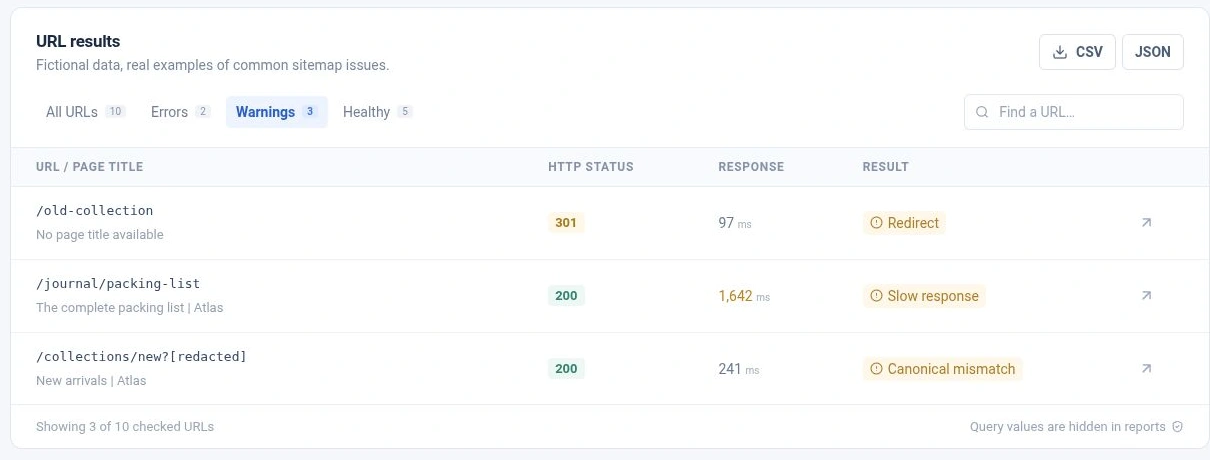
The example report starts with 10 checked URLs: 5 healthy, 2 errors and 3 warnings. Selecting “Warnings” narrows the table to a redirect, a slow response and a canonical mismatch. Each row keeps the URL, HTTP status and response time together.
Search helps you find a particular path when reviewing results. The CSV and JSON controls let you keep a copy outside the temporary report. These screenshots show the built-in demonstration, not a scan of a customer's website.
A 200 response can still need attention
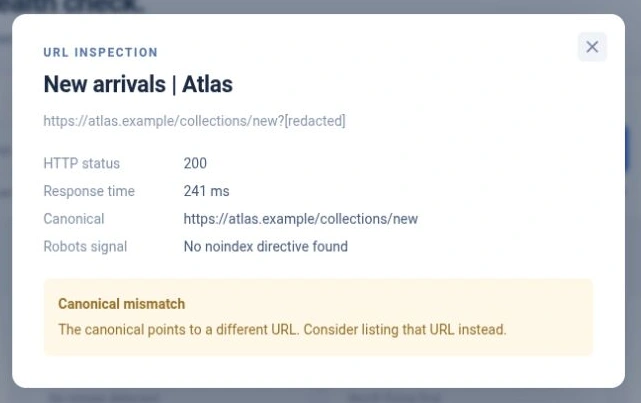
In this example, a collection URL with a query string returns HTTP 200, but its canonical points to the clean collection address. The details panel puts that canonical beside the response time and robots signal, making the disagreement visible.
If the clean address is the intended canonical, list it in the sitemap. If the alternate URL is meant to be a distinct page, investigate its canonical configuration first. A mismatch is a prompt to check the site's intended structure, not an instruction to remove every query string.
Turn sitemap findings into a short fix list
- Confirm the page's purpose. Should it exist, and should it be eligible for search? That determines whether to restore the page, correct a directive or remove the sitemap entry.
- Fix the source of the entry. Change the CMS settings, generator rule or source file. Editing a generated XML file by hand may only last until its next rebuild.
- Check the preferred URL again. Confirm its response and canonical, then run Scout on the updated sitemap. Save the new export if you need a record of what changed.
- Follow up in Search Console. Use Google's reports to investigate indexing. Scout can show a technical change in a fresh request; it cannot tell you when Google will recrawl or index the page.
A healthy result is scoped to the check. Scout is not a full site crawler. It does not establish that unlisted pages are discoverable, assess content quality or prove that Google selected your preferred canonical. If a page still does not appear in search, work through the page not indexed guide.
Know what the public scan covers
Each scan checks up to 25 URLs across 3 sitemap documents. The public app allows 5 scans per IP per hour, 20 per IP per day and 150 scans per day overall. Shared networks can share an IP allowance. Check the app's current limits notice before planning a larger review.
Scout runs through a web interface, but the scan is processed on a server. Full URLs are temporarily stored to perform the check. Query values are hidden in reports; URL paths and page titles remain visible. Submit public URLs only, without passwords, access tokens or private information.
Reports require a private access token and expire after one hour. Expired files are removed on later scan activity. Hosting logs and backups may have separate retention. Download any report you want to keep before closing the tab.
The Scout app has no accounts, analytics, cookies or paid API integrations. That describes the app at scout.ivig.dev; this informational website has its own privacy policy. You can review the app's “Scan limits & privacy” section before starting.
Scout, TechSEO Inspector or a full audit?
Use Sitemap Scout when your question is whether the URLs listed in a sitemap respond as expected and send consistent indexing signals. Use TechSEO Inspector to inspect an individual page's titles, headings, links and structured data from Chrome.
For a broad investigation, use the SEO audit checklist to define the scope. A full review may also need a crawl, Search Console data, internal-link analysis and manual assessment. The tools help collect evidence; deciding what matters still depends on the website and its goals.
Sitemap Scout questions
See what your sitemap is sending to search engines
Open Scout, check a public sitemap and turn the findings into your next fix. If you need help interpreting a result, request a personal first look at your site.