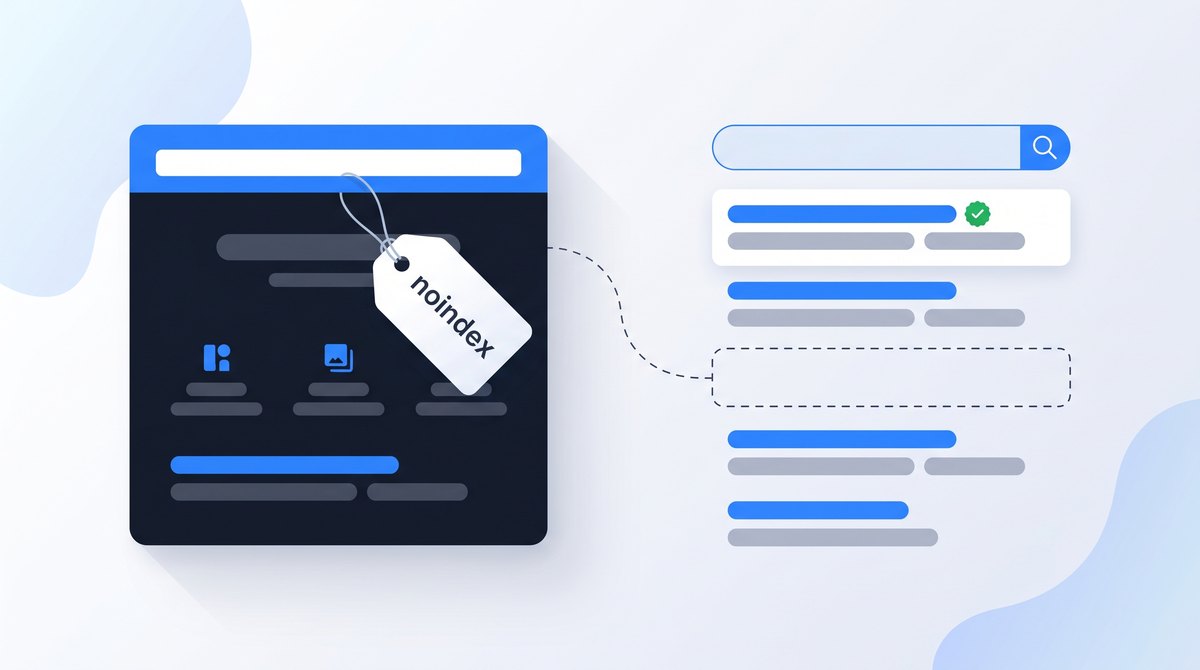
A noindex tag keeps a page out of Google's search results, but only if Google is allowed to crawl the page and read it. That one condition explains most noindex problems: pages that won't leave the index because robots.txt hides the tag, and pages that vanish because a forgotten setting added it.
This guide covers the meta tag and the HTTP header, how noindex compares with robots.txt, canonicals and deletion, and how to check any page. For a refresher on the other meta tags, see the on-page SEO meta tags guide.
What Noindex Does and Doesn't Do
A noindex rule tells search engines not to show a page in their results. Google has to crawl the page to read the rule. After it does, the page drops out of results even if other sites link to it.
Noindex doesn't block crawling, hide the page from visitors or protect private information. Anyone with the URL can still open it. It also takes effect only when Google next crawls the page, which for a rarely visited URL can take months, as Google's noindex documentation warns.
Crawl allowed
Robots.txt lets Googlebot fetch the page, so it can read the HTML and headers.
Rule found
Google sees noindex in a meta tag or an X-Robots-Tag header on the response.
Dropped from results
The page stops appearing in Google Search after it's processed.
Two Ways to Add Noindex
The robots meta tag goes in the head of an HTML page. It's the right choice for most pages, and most CMS platforms and SEO plugins add it for you with a checkbox.
<!-- Applies to all search engines that support it -->
<meta name="robots" content="noindex">

<!-- Applies to Google only -->
<meta name="googlebot" content="noindex">
The X-Robots-Tag HTTP header is sent by the server with the response. Use it for files that have no HTML head, such as PDFs, or to apply a rule to many URLs at once from server configuration.
<Files ~ "\.pdf$">
  Header set X-Robots-Tag "noindex"
</Files>location ~* \.pdf$ {
add_header X-Robots-Tag "noindex";
}The Apache example needs mod_headers, which most hosts enable. The rule names and the header aren't case-sensitive. If several rules conflict, Google applies the most restrictive one. Both points come from the robots meta tag specification, which also lists the other rules such as nosnippet and noimageindex.
You don't need index or follow values. Indexing and following links are the default, so content="index, follow" does nothing. It isn't harmful, but it shouldn't be what you check when a page is missing from Google.
Noindex, Robots.txt, Canonical or Delete?
Noindex is one of several tools that look similar from the outside. Picking the wrong one is the most common mistake I see, so start with what you actually want to happen.
| Goal | Use | Why not noindex? |
|---|---|---|
| Keep a page live for visitors but out of Google | Noindex, with crawling allowed | This is exactly what noindex is for. |
| Stop crawlers wasting time on endless filter or search URLs | Robots.txt Disallow | Noindex pages still get crawled. Disallow stops the fetching, but a blocked URL can still be indexed from links without its content. |
| Several URLs show the same content and one should rank | Canonical tag or redirect | Noindex removes a URL without passing its role to the preferred version. |
| The page is gone for good | 404 or 410 status | A deleted page should say so. There is nothing left to keep live. |
| The content is private | Password or login | Noindex pages are public to anyone with the URL. |
The robots.txt row causes most of the confusion. If you disallow a page in robots.txt, Google never fetches it, so it never sees the noindex tag. The URL can then appear in results with no description, because links elsewhere told Google it exists. Our robots.txt guide covers what the file is good for, and the canonical URL guide covers duplicate versions.
Not sure which applies? Answer one question.
Add a robots meta tag or X-Robots-Tag header and check that robots.txt doesn't block the URL. Then confirm the rule in URL Inspection.
Good for crawl traps like faceted filters and internal search. Remember a blocked URL can still be indexed from links. If it must leave results, use noindex first and block only after it has dropped out.
Use a redirect when visitors should land on the other URL, a canonical when both versions must stay available. See canonical vs. 301 redirect.
Remove the page and return a real error status, or redirect to a close replacement if one exists. Use the Removals tool only for urgent, temporary hiding.
Put the content behind a login or HTTP authentication. A noindex tag or robots.txt line doesn't stop anyone from opening a URL they have.
When Noindex Is the Right Call
Good noindex candidates
- Internal site search result pages
- Thank-you and order confirmation pages
- Thin tag or author archives you can't improve or remove yet
- Printer-friendly or downloadable copies of pages you've already published
- Campaign landing pages meant only for paid or email traffic
Poor noindex candidates
- Product variants that should consolidate to one URL
- Pages you just want ranking better
- Staging sites (use a password)
- Pages blocked in robots.txt
- Every page that shares a keyword with another
A useful test: would you be comfortable if Google never showed this page to anyone, while visitors who reach it from your menu or an email still get value? If yes, noindex fits. If you're hoping the page will rank later, fix it instead. The duplicate content guide and the keyword cannibalization guide help when the real issue is overlap.
Mistakes That Remove the Wrong Pages
The staging setting goes live. Many sites are built with a "discourage search engines" option switched on, which adds a sitewide noindex. When the site launches, nobody switches it off. The symptom is a site that never appears in Google, or one that drops out after a redesign. Check the CMS setting and the live HTML after every launch.
Noindex and Disallow together. Blocking the page in robots.txt hides the noindex. If a page has to leave results, keep it crawlable until it's gone. Only then decide whether a Disallow is worth adding.
JavaScript removes the tag. Some apps ship noindex in the initial HTML and remove it once the page loads. Google's JavaScript SEO basics say Google may skip rendering when it sees noindex, so the removal may never run. A Vercel and MERJ study of over 100,000 Googlebot fetches in April 2024 found pages with noindex in the initial HTML weren't rendered at all. Put the final robots rule in the server response.
A header nobody can see. An X-Robots-Tag set in a server config, CDN rule or security plugin doesn't show up in the page source. If a page is noindexed and the HTML looks clean, check the response headers.
Noindexed pages in the XML sitemap. A sitemap tells Google these are URLs you want indexed; the noindex says the opposite. Remove noindexed URLs from the sitemap. Our free Sitemap Scout flags noindex pages in a sitemap, and the XML sitemap guide explains what belongs there.
A plugin template noindexes a whole section. One wrong setting for categories, products or paginated pages can affect thousands of URLs. Spot-check one URL from each template after changing SEO plugin settings.
How to Check a Page for Noindex
- Look at the page source. Press Ctrl+U (Cmd+Option+U on Mac) and search for
noindex. This shows the server's HTML, not what JavaScript changes later. - Check the response headers. In DevTools, open Network, reload, select the document request and read the response headers. Or use the command below.
- Run URL Inspection in Search Console. The live test reports whether indexing is allowed and which rule Google found. The Search Console setup guide helps if you don't have access yet.
- Review the Page indexing report. URLs Google dropped because of the rule are listed under Excluded by 'noindex' tag. Scan the list for pages that should be indexed.
curl -sI https://example.com/page/ | grep -i x-robots-tag
curl -s https://example.com/page/ | grep -io '<meta[^>]*robots[^>]*>'
Both commands print nothing if no rule is present. Some servers send a different response to command-line tools, so confirm a surprising result with URL Inspection. For a quick per-page check while browsing, the free TechSEO Inspector extension shows the page's indexability status.
Removing Noindex and Getting the Page Back
Delete the meta tag or header at its source, whether that's the template, plugin setting, CMS toggle or server rule. Confirm the live page is clean with the checks above, then request indexing in URL Inspection. If many URLs were affected, fix the template, keep them in the XML sitemap and use Validate fix in the Page indexing report. Validation typically takes up to about two weeks, according to Google's Page indexing report help, though it can take longer.
Returning to the index doesn't guarantee returning to the old positions straight away. If the page is back in the index but gets little traffic, work through the indexed-but-not-ranking checklist. If it still isn't indexed after the rule is gone, the page not indexed guide covers the other causes.
Frequently Asked Questions
Related Guides
- Use robots.txt for crawl control.
- Find why a page isn't indexed.
- Handle duplicate URLs with canonicals.
- Keep robots rules out of JavaScript.

I'm a developer who moved into technical SEO. I trace search problems through crawling, rendering, indexing, templates, content and performance, then implement the fixes instead of handing over a generic export. Request a free website review and I'll review your site personally.