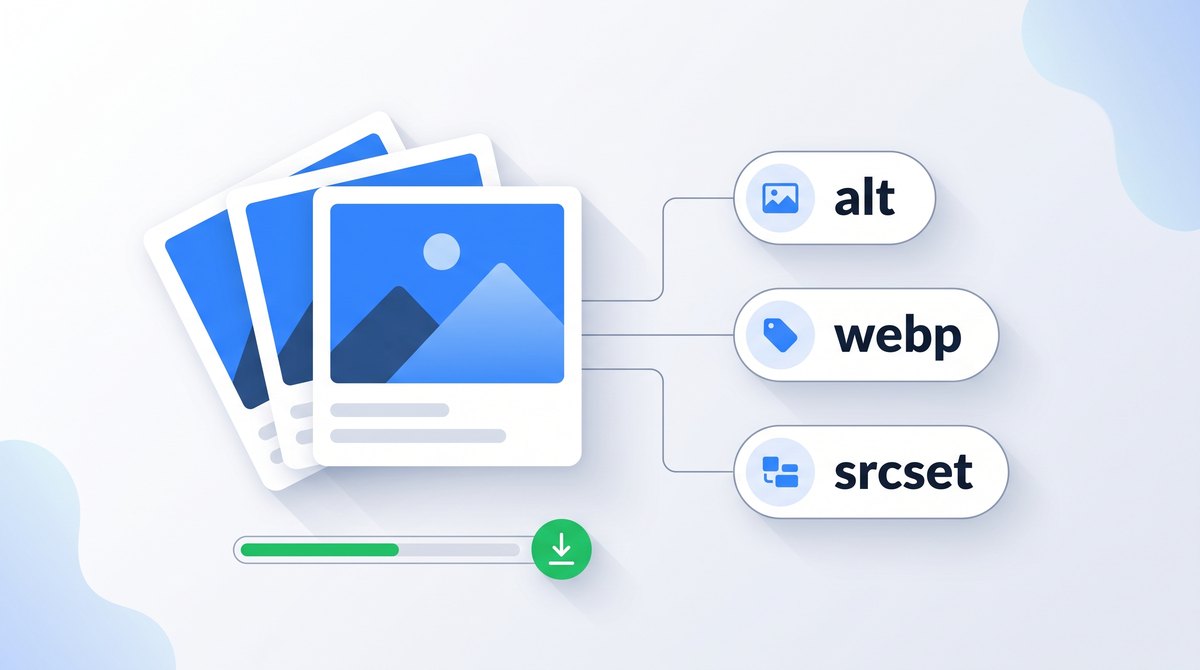
Image SEO means helping search engines find, understand and quickly load your images. In practice that comes down to real img elements, useful alt text, descriptive file names, efficient formats, responsive sizes and sensible lazy loading.
This guide covers each one with copyable markup. If the page's titles and descriptions need work too, start with the on-page SEO meta tags guide.
How Google Finds and Understands Images
Google discovers images through img elements in your HTML, including those inside a picture element. It doesn't index images added through CSS, such as a background-image. It then works out what an image shows from the image itself, the alt text, the file name and, above all, the text around it on the page. Google's image SEO best practices cover these signals, and they're the source for the recommendations in this section unless stated otherwise.
Supported formats are BMP, GIF, JPEG, PNG, WebP, SVG and AVIF. Keep the file extension matching the real file type. An image also needs to sit on a page Google can crawl, so it can see the image in context.
Most image SEO work is fixing these basics across templates rather than tuning individual photos. A product template with no alt text or no dimensions repeats the problem on every product.
Write Alt Text That Describes, Not Stuffs
Alt text exists for people who can't see the image, including screen reader users and anyone whose images fail to load. Search engines use it too, but writing for the person gives the better result for both. Describe what the image shows and why it's on the page, in a short phrase.
<!-- Missing: screen readers and search engines get nothing -->
<img src="IMG_4821.jpg">

<!-- Stuffed: a list of keywords, not a description -->
<img src="IMG_4821.jpg" alt="laptop repair, laptop screen repair, cheap laptop repair, laptop fix">

<!-- Useful: describes what the image shows in context -->
<img src="laptop-screen-replacement.jpg" alt="Technician fitting a new screen to a 14-inch laptop">

<!-- Decorative: empty alt so assistive technology skips it -->
<img src="divider-wave.svg" alt="">
Google's own example contrasts alt="puppy" with the more useful alt="Dalmatian puppy playing fetch". Specific beats generic, and a description beats a keyword list. Not every image needs a description, though. The W3C alt decision tree gives practical rules.
| Image type | Alt text | Example |
|---|---|---|
| Informative photo or illustration | A short description of what it shows that matters here. | alt="Before and after photo of a cracked laptop screen" |
| Image inside a link or button | The destination or action, not the picture. | A logo linking home: alt="iviG home" |
| Image of text | The same text, unless it's repeated nearby. | A banner reading Free Diagnostics: alt="Free diagnostics" |
| Decorative image | Empty, so screen readers skip it. | alt="" |
| Chart or diagram | A short summary, with the details in nearby text or a table. | alt="Bar chart of image formats; table below" |
An empty alt="" and a missing alt attribute aren't the same. Empty means "decorative, skip it"; missing leaves screen readers to guess, often by reading out the file name.
Name Files and Keep URLs Stable
A file name is a small hint, but it's free. laptop-screen-replacement.jpg tells people and search engines more than IMG_4821.jpg. Use a few descriptive words separated by hyphens and keep it short. Rename files before you upload them; renaming later changes the URL.
That matters because Google treats a new image URL as a new image. If a CMS or CDN changes image URLs on every deployment, Google has to discover and process them again. Keep URLs stable for images that matter, and redirect old image URLs if you have to move them. When the same image appears on several pages, use the same URL each time so it can be cached.
Pick the Right Format and Compress It
| Format | Use it for | Watch out for |
|---|---|---|
| JPEG | Photos when you need maximum compatibility. | Visible artifacts at high compression; no transparency. |
| PNG | Screenshots, graphics with sharp edges, transparency. | Very large files for photos. |
| WebP | A smaller default for both photos and graphics. | Check your CMS and email tools if images are reused there. |
| AVIF | The smallest photos at similar quality. | Slower to encode; keep a fallback for older software. |
| SVG | Logos, icons and simple illustrations. | Not for photos; sanitize uploaded SVG files. |
Whatever the format, export images at the largest size they're displayed, not the camera's original resolution, and compare compression settings by eye. Many image CDNs, build tools and CMS plugins can produce WebP or AVIF automatically while keeping the original as a fallback.
Serve the Right Size With Responsive Images
A phone doesn't need the 2,000-pixel image a large desktop monitor uses. srcset lists the available widths and sizes tells the browser how wide the image will be displayed, so it can choose the smallest file that looks sharp. The picture element adds format choices. Google recommends always including an img with a src as the fallback.
<picture>
  <source type="image/avif"
          srcset="/img/workshop-640.avif 640w, /img/workshop-1280.avif 1280w"
          sizes="(max-width: 800px) 100vw, 800px">
  <img src="/img/workshop-1280.jpg"
       srcset="/img/workshop-640.jpg 640w, /img/workshop-1280.jpg 1280w"
       sizes="(max-width: 800px) 100vw, 800px"
       width="1280" height="720"
       loading="lazy"
       alt="Repair workshop with laptops lined up on an anti-static bench">
</picture>
The width and height attributes let the browser reserve the right space before the file arrives, which prevents layout shifts that count against CLS. Set them to the image's intrinsic size and let CSS scale it with max-width: 100%; height: auto;. An accurate sizes value matters: the Web Almanac 2024 found the median mobile sizes attribute overstated the displayed width by 16%, so browsers fetched bigger files than needed.
Lazy Load Without Hurting LCP
loading="lazy" delays images until they're near the viewport. It saves data on long pages and is safe for search: Google's lazy-loading guidance supports the browser attribute and visibility-based scripts. Avoid scripts that load images only after a click or scroll, because Google doesn't interact with the page.
Don't lazy-load images in the first screen, especially the largest one. It delays the image that usually decides Largest Contentful Paint. The LCP guide explains why and shows how to prioritize that image with fetchpriority="high" instead.
data-src attribute and swap it in with a script. If the swap fails, Google sees a placeholder. In URL Inspection, view the rendered HTML and confirm real image URLs appear in src, as Google's guidance recommends.Help Google Pick the Right Image
For a search result thumbnail or a social share, you can point to the image that best represents the page. Google's documentation lists three ways: the og:image meta tag, the primaryImageOfPage property in structured data, or an image on the page's main entity. Choose a relevant, high-resolution image without extreme proportions or lots of text. Our schema markup guide covers adding an image to Article or Product structured data.
Put important images near the text they illustrate, give them captions where useful, and make sure the page's topic matches the image. An image sitemap can help Google discover images it might otherwise miss, including images served from a CDN on another domain. The XML sitemap guide covers the format.
Keep Images Out of Search When You Need To
To stop Google indexing images that appear on a page, add noimageindex to that page's robots meta tag. To block specific image files wherever they appear, send an X-Robots-Tag noindex header with the files themselves. Both are documented in the robots meta tag specification, and the noindex guide explains how header rules work.
<FilesMatch "\.(jpe?g|png|webp|avif|gif)$">
  Header set X-Robots-Tag "noindex"
</FilesMatch>
Narrow the pattern to a folder or file type you actually want hidden. A sitewide rule like this one would remove every image on the site from Google Images, including product photos that bring in visitors.
Image SEO Checklist
Before publishing a page with images
- Important images use
imgelements, not CSS backgrounds - Informative images have short, specific alt text; decorative ones have
alt="" - File names describe the image and URLs stay stable
- Images are exported at their displayed size in WebP, AVIF or a sensible fallback
srcsetand an accuratesizesvalue serve smaller files to phones- Every image has
widthandheightto prevent layout shifts - Below-the-fold images lazy-load; the LCP image doesn't
- The page's preferred image is set with
og:imageor structured data
For a quick check on any live page, the free TechSEO Inspector extension includes an images check in its on-page audit.
Frequently Asked Questions
Related Guides
- Speed up the largest image on the page.
- Write better titles and meta tags.
- Add images to structured data.
- Prevent layout shifts and slow loading.

I'm a developer who moved into technical SEO. I trace search problems through crawling, rendering, indexing, templates, content and performance, then implement the fixes instead of handing over a generic export. Request a free website review and I'll review your site personally.