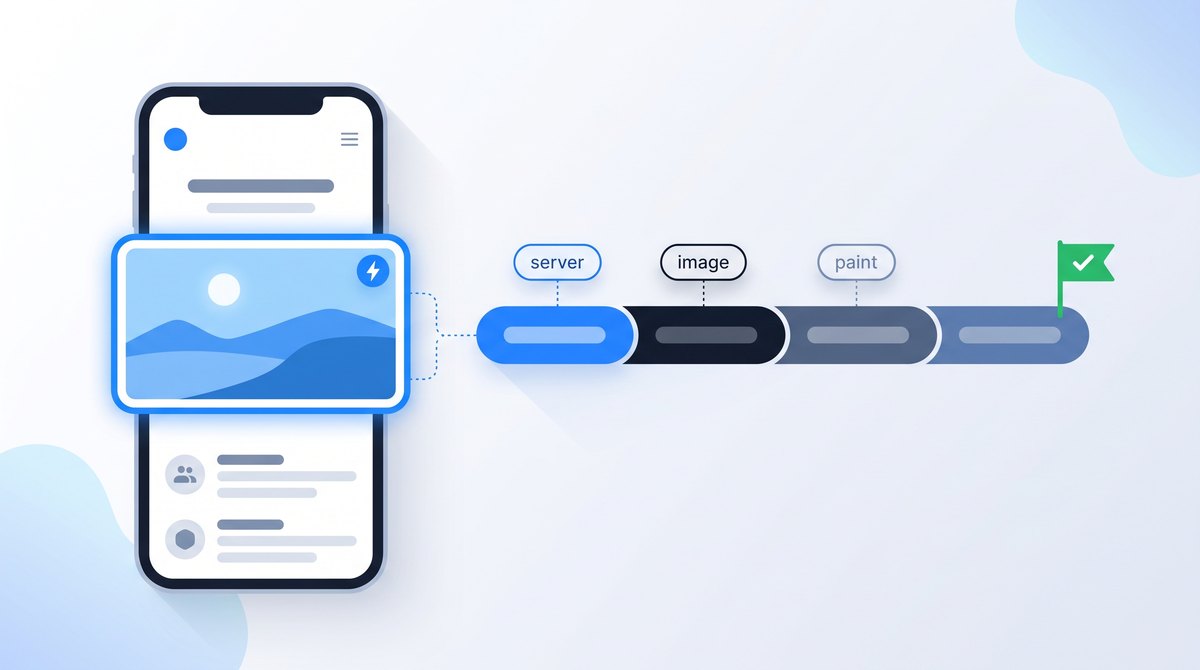
To improve LCP, find the largest element in the first screen, split its loading time into four phases, and fix the biggest phase first. A server problem needs a server fix; an image hidden behind JavaScript needs a markup fix. Compressing images helps only one of the four.
This guide is for site owners and developers looking at a poor or borderline LCP in PageSpeed Insights or Search Console. For INP and CLS, and for how Google uses these metrics, read the Core Web Vitals guide first.
What LCP Measures
Largest Contentful Paint reports when the largest image, video poster or text block visible in the viewport finished rendering, measured from the moment the visitor started loading the page. It's a loading metric. It doesn't say when the page became usable or when every image arrived, only when the biggest piece of visible content appeared.
A good LCP is 2.5 seconds or less; anything above 4 seconds is poor. Google assesses the 75th percentile of page loads, split by mobile and desktop, so a fast result on your office connection says little about the slowest quarter of real visits. Thresholds, eligible element types and the elements browsers ignore (invisible elements, full-viewport backgrounds and low-detail placeholder images) are listed in Google's LCP documentation.
Those last two numbers explain where most of this guide goes. On a typical page the LCP element is an image, and on a third of mobile pages that image only becomes visible to the browser after CSS or JavaScript runs. That's a delay you can usually remove without touching the server.
Find Your LCP Element First
Don't start by compressing every image on the site. Identify the specific element that's being measured on the template that's slow. A product page, a blog post and the homepage often have different LCP elements and different problems.
- Run the URL through PageSpeed Insights. The top section shows field data from real Chrome users when enough exists; the lab section below it is one simulated load.
- In the lab diagnostics, find the Largest Contentful Paint element. It names the node, such as a hero
imgor a heading. - Open the page in Chrome, then DevTools, then Performance. Record a page load with the throttling you'll keep for later comparisons.
- Open the LCP breakdown insight. Chrome splits the time into four phases, which the next section explains.
- Repeat on a mobile viewport. The LCP element on a phone is often a different element from the desktop one, especially when the hero image is hidden or cropped on small screens.
Chrome's documentation for the LCP breakdown insight describes the panel. If PageSpeed Insights shows no field data, the URL doesn't have enough Chrome traffic for the report. That's not evidence that it's fast or slow; rely on lab tests and your own measurement until it does.
Break LCP Into Four Phases
Every image LCP can be split into the same four parts. Finding the largest one tells you which kind of fix to try. Google's LCP optimization guide defines them and suggests a rough budget for each.
| Phase | What it covers | Rough target share |
|---|---|---|
| Time to First Byte | From starting the navigation to receiving the first byte of HTML. | About 40% |
| Resource load delay | From the first byte to the moment the browser starts downloading the LCP image. | Under 10% |
| Resource load duration | Downloading the LCP image itself. | About 40% |
| Element render delay | From the image finishing to it actually appearing on screen. | Under 10% |
Text LCP elements have no resource to download, so their time is TTFB plus render delay. Web fonts, hidden content and render-blocking files tend to dominate there.
The chart is the useful surprise. Teams often go straight to image compression, yet across sites with good LCP, downloading the image was the shortest phase. The server response and the delay before the browser even requests the image took far longer.
Fix a Slow Server Response
If TTFB is the largest phase, image work won't fix it. Look at what happens before the HTML leaves the server.
- Redirects before the page. An ad link that goes from http to https to www to the final URL adds a full round trip for each hop. Link to the final URL. Our HTTP status codes guide explains how to trace a chain.
- Uncached HTML. On WordPress and similar systems, a page cache can serve stored HTML instead of rebuilding it from the database on every visit. Check that it's active for logged-out visitors and isn't bypassed by a cookie or query string.
- Distance. A CDN that caches HTML close to visitors helps an audience spread across countries. Caching only images and CSS on the CDN leaves the HTML trip unchanged.
- Slow back-end work. Personalization, API calls or heavy plugins that run before the response. Profile them on the server; the browser can only show you the wait.
Test TTFB from more than one location and repeat requests. The first uncached request after a deployment is often much slower than what most visitors receive, and both numbers matter.
Remove the Delay Before the Image Starts
This is the phase with the most room for quick wins. The goal from Google's guidance is simple: the LCP image should start downloading at about the same time as the first resources the page requests. Three patterns usually prevent that.
The image isn't in the HTML. When a slider script, a JavaScript framework or a CSS background-image supplies the hero image, the browser can't see it until those files arrive and run. Use a normal img element with a real src in the server's HTML wherever possible. If the design truly needs a CSS background, preload it.
The image is lazy-loaded. loading="lazy" tells the browser to wait until it knows the image is near the viewport, which requires layout first. That's right for images further down the page and always wrong for the LCP image. In 2024, 9.5% of mobile pages still natively lazy-loaded their LCP image, and another 6.7% did it with a script, according to the Web Almanac 2024. Plugins and themes that lazy-load every image are the usual cause.
The image has normal priority. Browsers usually start images at low priority and raise it once layout confirms the image is visible. fetchpriority="high" gives the browser that information upfront. On the Google Flights homepage, adding it to the hero image improved LCP from 2.6 to 1.9 seconds, as documented in web.dev's Fetch Priority article. It's a hint, so use it on one or two images, not every image on the page.
<!-- Before: hidden from the browser until the script runs, then lazy-loaded -->
<div class="hero" data-bg="/img/hero-1600.jpg"></div>

<!-- After: discoverable in the HTML, prioritized, not lazy-loaded -->
<img src="/img/hero-1200.jpg"
     srcset="/img/hero-800.jpg 800w, /img/hero-1200.jpg 1200w, /img/hero-1600.jpg 1600w"
     sizes="100vw"
     width="1600" height="900"
     fetchpriority="high"
     alt="Technician replacing a laptop screen at a repair bench">

<!-- Only if the hero must stay a CSS background image: -->
<link rel="preload" as="image" href="/img/hero-1200.jpg" fetchpriority="high">
A preload for a responsive image also needs imagesrcset and imagesizes attributes to match the image you actually serve, or the browser can download the wrong file. When you can switch to an img element, that's the simpler fix.
picture element with media conditions instead, so the browser picks the right file from the HTML.Shorten the Image Download
Once the request starts early, make the file smaller. A 1,600-pixel-wide image squeezed into a 390-pixel phone layout wastes most of its bytes.
- Serve sizes that match the layout with
srcsetand an accuratesizesvalue. - Use WebP or AVIF where your image pipeline supports it, with sensible compression. Compare the result visually; an artifact-ridden hero image isn't a win.
- Serve the image from your own origin or a CDN connection the page already uses. A new third-party domain adds connection setup before the download can begin.
- Set long cache lifetimes for versioned image URLs so repeat visits don't download it again.
Formats, responsive markup and alt text are covered in more depth in the image SEO guide.
Cut the Render Delay
If the image has downloaded but still isn't on screen, something is holding up rendering.
- Render-blocking CSS and scripts. Large stylesheets and synchronous scripts in the
headmust finish before the first render. Google's guidance is to keep render-blocking CSS smaller than the LCP resource itself; inline the small amount of CSS needed for the first screen and defer the rest where your build allows it. - Content hidden until JavaScript runs. Client-side rendered pages, sliders that fade in and A/B testing snippets that hide the page until an experiment loads all add render delay. The JavaScript SEO guide covers rendering approaches that put content in the initial HTML.
- Web fonts for text LCP. If a heading is the LCP element and its font loads late, the text may stay invisible. Preload the one font file used above the fold and use a
font-displayvalue that shows fallback text. - Long main-thread tasks. Heavy scripts can delay painting even when everything has arrived. The same tools that diagnose slow interactions help here; see the INP guide.
Verify the Fix Without Overclaiming
Compare before and after in the lab with the same URL, device emulation, throttling and cache state. Check that the LCP element is still the one you optimized; making the hero faster can make a heading the new LCP element, which is fine, but it changes what you're measuring.
Field data changes more slowly. CrUX data is a 28-day rolling average, so PageSpeed Insights won't reflect the full effect of a release for about four weeks, according to the CrUX API documentation. Note the release date and judge the trend after that window, not the day after deployment.
LCP release checklist
- The LCP element is identified for mobile and desktop on each affected template
- The largest of the four phases is known before choosing a fix
- The LCP image is an
imgwith a realsrcin the server HTML - The LCP image isn't lazy-loaded and carries
fetchpriority="high" - Image files match their displayed size and use an efficient format
- Redirects before the page are removed and HTML caching works for visitors
- Lab results are compared under identical settings
- Field data is reviewed after the 28-day window
Faster LCP is good for visitors, but it isn't a ranking guarantee. Core Web Vitals are one signal among many. If the page is fast and still invisible in search, the cause is elsewhere; start with the Core Web Vitals guide for the wider picture and the indexed-but-not-ranking checklist for visibility problems.
Frequently Asked Questions
Related Guides
- Understand all three Core Web Vitals.
- Find and fix slow interactions.
- Optimize images for search and speed.
- Check what JavaScript hides from the first render.

I'm a developer who moved into technical SEO. I trace search problems through crawling, rendering, indexing, templates, content and performance, then implement the fixes instead of handing over a generic export. Request a free website review and I'll review your site personally.